 habstick
Icon or emoji, your call
The picker has an Icon tab and an Emoji tab. Both add a search field, a live preview, and a Set this icon action.
Last updated .
A habit tracker works better when the habit looks like yours. HabStick lets you name it, sort it, color it, and pick the icon or emoji that makes it feel like part of your day.
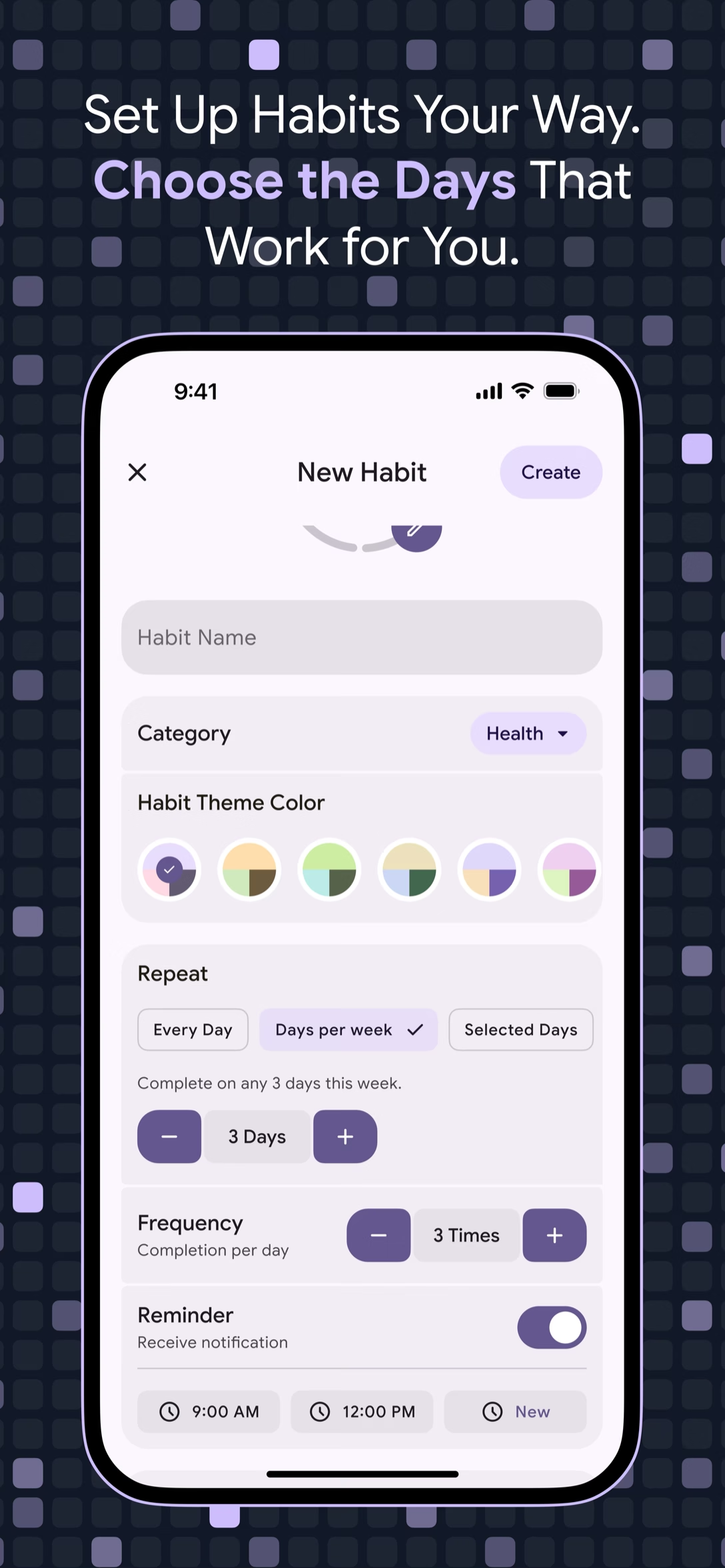
Most habit apps stop personalization at the habit name itself. HabStick opens a New Habit screen with a category, a habit color, a repeat schedule, a frequency, a reminder, a streak rule, and an icon. Not every field matters for every habit, but together they turn a plain checkbox into something that feels like a small part of your day.
The icon picker is where a lot of the personality sits. It has two tabs, Icon and Emoji, and both work the same way: a search field, a live preview, and a Set this icon action. Search the icon library or search emoji, then choose one of the 20 colors and a category. By the time you tap Create, the habit already looks like it belongs to you.
Minimalist design that respects your time and attention.
The picker has an Icon tab and an Emoji tab. Both add a search field, a live preview, and a Set this icon action.
Habit colors come from a 20-color palette, and you choose one per habit. It is an easy way to tell a long list apart at a glance.
Pick a ready category such as Fitness, Productivity, Health, or Finance, or create your own. Custom names run from 1 to 60 characters before you save.
Editing an existing habit can move streaks and calculations, so HabStick shows a warning first. You decide whether the change is still worth making.
Choose as much or as little as the habit needs.
Search the icon library, check the live preview, and tap Set this icon when the mark looks right in your list.
The same search field, live preview, and Set this icon action—with an emoji as the mark instead of an icon.
Choose from ready categories like Fitness, Productivity, Health, Finance, and Study, or create your own with a name that fits.
Pick one color per habit from a palette of 20, so a long list still reads clearly at a glance.
One screen, a few choices, no setup manual.
Start on the New Habit screen, type a name, and pick a category—a ready one or your own. Custom categories join the filter chips on the home screen.
Open the icon picker, switch between the Icon and Emoji tabs, and search for a mark. The live preview shows your choice, and Set this icon saves it.
Choose one of the 20 habit colors, then set the repeat schedule, frequency, reminder, and streak rule. Tap Create, and the habit is yours.
Explore more HabStick capabilities:
The New Habit screen includes the habit name, category, habit color, repeat schedule, frequency, reminder, streak rule, and an icon. You choose each one as you create the habit.
Yes. The picker has two tabs, Icon and Emoji. Both have a search field and a live preview, so you search either one the same way.
Open the icon picker, search the library, and check the live preview. When it looks right, tap Set this icon and the habit keeps it.
Yes. The category picker includes a Create your own category action. Give the category a name between 1 and 60 characters, then save it for your habits.
They appear as filter chips on the home screen, next to the Today filter and the search field. Tap one to narrow the habit list.
A category cannot be deleted while a habit is still using it. Switch that habit to another category first if you want to remove it.
Habit colors come from a palette of 20, chosen per habit.
HabStick shows a warning that an edit may affect streaks and calculations. It is there so a rename or a schedule change does not quietly move your numbers.
Free to start on iOS and Android. No login, no clutter—just your habits.